 The U.S. National Security Agency (NSA) today has published guidance on how to expose as little location information as possible while using mobile and IoT devices, social media, and mobile apps. As the agency explains, protecting your geolocation data can be the difference between being tracked wherever you go or knowing that your location can't be used to monitor your movements and daily routine. "Location data can be extremely valuable and must be protected," the NSA explains [PDF]. "It can reveal details about the number of users in a location, user and supply movements, daily routines (user and organizational), and can expose otherwise unknown associations between users and locations." However, as the NSA adds, "[w]hile the guidance in this document may be useful to a wide range of users, it is intended primarily for NSS/DoD system users." Devices like smartphones and tablets use a combination of methods to determine a user's location including Global Positioning System (GPS) and wireless signals such as wireless Wi-Fi, cellular, and Bluetooth. Disabling these radios can drastically reduce the exposed location data by blocking devices from sharing real-time geolocation information with cellular providers or rogue bases stations when powered on or during use. This can also prevent threat actors from determining your device's location with the help of wireless sniffers which calculate it based on signal strength. However, even if disabled, when some device radios are re-enabled they may still transmit saved location information. IoT devices also add to the location data exposure risks since they can store location information about other devices in their range, info that can later be exposed when accessed and viewed by unauthorized third-parties. Using apps with permissions to use your location also increases the risk of exposing your geolocation data, just as photos with embedded location data shared on social media. "Apps, even when installed using the approved app store, may collect, aggregate, and transmit information that exposes a user’s location," the NSA adds. Depending on the risk level of exposing their location that users are comfortable with, the NSA shared a number of measures that should lower the risk of exposing one's location while using mobile devices and apps. However, "[p]erhaps the most important thing to remember is that disabling location services on a mobile device does not turn off GPS, and does not significantly reduce the risk of location exposure," the NSA explains. "Disabling location services only limits access to GPS and location data by apps. It does not prevent the operating system from using location data or communicating that data to the network." The NSA says that those who want to prevent location data collection from their devices can take these mitigation measures to limit their exposure For more complete details visit OUR FORUM.  Fine-tune your browser settings to keep trackers off your trail. Privacy is now a priority among browser makers, but they may not go as far as you want in fighting pervasive ad industry trackers on the web. Here's a look at how you can crank up your privacy settings to outsmart that online tracking. Problems like Facebook's Cambridge Analytica scandal have elevated privacy protection on Silicon Valley's priority list by showing how companies compile reams of data on you as you traverse the internet. Their goal? To build a richly detailed user profile on you so that you can become the target of more accurate, clickable, and thus profitable advertisements. Apple and Google are in a war for the web, with Google pushing aggressively for an interactive web to rival native apps and Apple moving more slowly in part out of concern those new features will worsen security and be annoying for users. Privacy adds another dimension to the competition and to your browser decision. Apple has made privacy a top priority in all its products, including Safari. For startup Brave, privacy is a core goal, and Mozilla and Microsoft have begun touting privacy as a way to differentiate their browsers from Google's Chrome. It's later to the game, but Chrome engineers have begun building a "privacy sandbox" despite Google's reliance on ad revenue. For all of the browsers listed here, you can give yourself a privacy boost by changing the default search engine. For instance, try DuckDuckGo. Although its search results may not be as useful or deep as Google's, DuckDuckGo is a longtime favorite among the privacy-minded for its refusal to track user searches. Other universal options that boost privacy include disabling your browser's location tracking and search engine autocomplete features, turning off password autofill, and regularly deleting your browsing history. If you want to take your privacy to the next level, consider trying one of the virtual private networks CNET has reviewed which work with all browsers. In the meantime, though, here are some simple settings you can change in your current browser to help keep a good portion of advertising trackers off your trail. For complete details visit OUR FORUM. 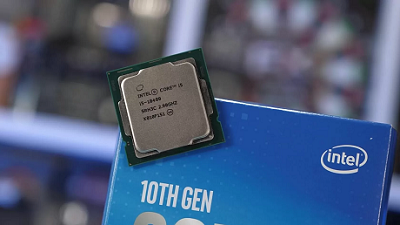 Do you need to buy a Core i9 for gaming, and is a Core i3 sufficient for general desktop work? How about upgrading to a Core i5 if it's only $50 more, and how much faster is that going to be? Generally speaking, our CPU reviews provide more than enough data to answer those questions and then some. In addition, TechSpot's easy to follow Best CPUs guide is regularly updated, so you simply get what you need to know to make an informed buying decision. With that said, this review will serve as a great reference for those wanting to compare Intel Core i3, i5, i7, and i9 processors directly, and what you get on each jump. It’s rare for us to feature all these processors in a single review since they aim at different market segments and budgets. For example, when reviewing the Core i3-10100, none of the Core i7 or i9 processors were included, as $400+ parts aren’t usually relevant when reviewing an entry-level $100 CPU, so we opt to remove them in an effort to declutter the graphs. Having recently provided a similar overview for AMD's 3rd-gen Ryzen range, it was only logical we did the same for Intel, considering the 10th-gen CPUs have only been out for a few months. Intel lists 17 individual ‘standard power’ 10th-gen Core desktop processors, though in reality there’s just a handful of unique models. For example, there are two distinct Core i9 models, the 10900 and the 10900K, but each has an alternate version without the integrated graphics -- dubbed the 10900F and 10900KF. But let’s start from the bottom and work our way up. The 10th-gen Core i3 range is quite interesting, all models feature 4 cores and 8 threads thanks to Hyper-Threading support. The base i3-10100 model operates at a base frequency of 3.6 GHz with a max turbo of 4.3 GHz and packs a 6 MB L3 cache. Then there’s the Core i3-10300 which gets a 100 MHz frequency bump plus a larger 8 MB L3 cache. Finally, the most powerful Core i3 model available right now is the 10320, which runs at even higher clock speeds, boosting the base to 3.8 GHz and the max turbo to 4.6 GHz. To represent the Core i3 range today we'll be using the Core i3-10100. The 10th-gen Core i5 series consists of the 10400, 10400F, 10500, 10600, 10600K, and the 10600KF as shown in the table below. The six models feature 6 cores, 12 threads, and a 12MB L3 cache. The non-K models are rated with a 65-watt TDP while the unlocked K SKUs pack a 125-watt TDP. The difference between the 10400, 10500, and 10600 is 200 to 300 MHz, that’s it, and since they’re locked parts you won’t be able to change that. The 10600K and its F variant are fully unlocked, provided you’re using a Z-series motherboard, they can be overclocked. Complete details, along with images, and benchmarks can be found on OUR FORUM. |
Latest Articles
|