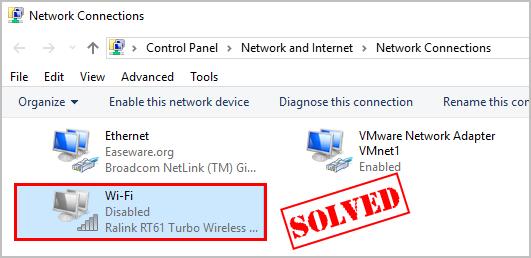
 If you notice you’re having network & internet connection problems on your Windows 10 or Windows 11 PC. Issues like Unidentified network appearing, the Wi-Fi connection is limited, low Wi-Fi signal strength or the WiFi adapter is not working at all, then this post is intended to help you with solutions to the issue.  Install a VPN and you might think your internet activities are fully protected from snoopers. With every site you access, all the data you transfer is sent through the VPN's secure encrypted tunnel and so keeping it safe from prying eyes. Unfortunately, if the VPN connection fails (e.g. server problem, weak Wi-Fi signal, overloaded network, etc) then your device may switch to your regular unprotected connection. Sites then get your real IP address, Wi-Fi hotspots might see the websites you're accessing, and the VPN won’t be encrypting any of your data. Most VPN providers handle this situation by offering a kill switch - although some give it a different name, like ExpressVPN's Network Lock or Windscribe's Firewall. But is this an effective solution? In this article we'll explain what a kill switch does, the different types of kill switches available, and how you can make sure your VPN kill switch is set up correctly. The idea behind a kill switch is simple. Essentially, if the VPN connection drops, the kill switch activates and blocks your device's internet access. This prevents you from accidentally sending data outside of the secure VPN tunnel, because if the tunnel fails then you won't be able to send any data at all. Every platform has its own tools for making this happen. An Android VPN app might use Android's built-in 'Always-on VPN' setting, for instance (Settings, Connections, More Connection Settings, VPN.) But Windows VPNs often use the Windows Filtering Platform (the technology behind Windows Firewall), and Mac and iPhone VPN apps have further techniques of their own. If the VPN drops, then however the kill switch kicks in, your VPN app usually tries to reconnect. Once the tunnel is up again, your internet access is automatically restored. As an aside, all this cross-platform complexity makes it challenging for VPN providers to offer a kill switch on every device type. Keep that in mind if you visit a provider's website and it boasts about having a great kill switch but doesn't list the supported platforms. Check the rest of the site, maybe in the Support pages, to find out if there's a kill switch on all apps. Although the concept of a kill switch is simple, the reality is more complicated, because every provider and app has its own way of working. There are two common approaches. The most popular type, such as ExpressVPN's Network Lock on Windows, only blocks your internet access if the VPN drops unexpectedly. If you manually disconnect or close the VPN app, the kill switch is disabled and you're free to browse as usual. But others (including NordVPN's Windows app) don't allow any internet access at all unless you're connected to the VPN. If you manually disconnect or close the app, you won't be able to get online until the VPN connection is re-established. This technology monitors your system, and if it detects a dropped connection, closes the apps you specify. You might tell the VPN app to shut down your browser and torrent client, for instance, ensuring they won't use an unprotected connection. Application-level kill switches don't offer much security. But they're also less likely to get in your way than the usual type, as they only affect the apps you specify and won't block anything else. If you only need the most basic protection for one or two apps, an application-level kill switch might be useful. But if you're looking for something more comprehensive, we'd stick with a system-wide kill switch. For more on this visit OUR FORUM.  Security researchers discovered new vulnerabilities in the WPA3-Personal protocol which allow potential attackers to crack Wi-Fi network passwords and get access to the encrypted network traffic exchanged between the connected devices. According to a press release from the Wi-Fi Alliance, the devices impacted by these security vulnerabilities in the WPA3 Wi-Fi standard "allow the collection of side-channel information on a device running an attacker’s software, do not properly implement certain cryptographic operations, or use unsuitable cryptographic elements." WPA3 uses Wi-Fi Device Provisioning Protocol (DPP) instead of shared passwords to sign up new devices to the network, a protocol that allows users to scan QR codes or NFC tags to log devices onto the wireless network. Additionally, unlike WPA2, all network traffic will be encrypted after connecting to a network that uses WPA3 WiFi Security. The WPA3-Personal protocol replaces the Pre-shared Key (PSK) in WPA2-Personal with Simultaneous Authentication of Equals (SAE) to provide more robust password-based authentication. While the WPA3-Personal was designed to substitute the less secure 14-year-old WPA2, the newer protocol's Simultaneous Authentication of Equals (SAE) handshake—also known as Dragonfly—seems to be plagued by a number of underlying design flaws which expose users to password partitioning attacks as discovered by researchers. "These attacks resemble dictionary attacks and allow an adversary to recover the password by abusing timing or cache-based side-channel leaks. Our side-channel attacks target the protocol’s password encoding method" said Mathy Vanhoef (NYUAD) and Eyal Ronen (Tel Aviv University & KU Leuven) in their research paper. The researchers also mention on the website dedicated to the analysis of the attacks against WPA3's Dragonfly handshake that "This can be abused to steal sensitive transmitted information such as credit card numbers, passwords, chat messages, emails, and so on." As explained in the abstract of the research paper, "The resulting attacks are efficient and low cost: brute-forcing all 8-character lowercase passwords requires less than 125$in Amazon EC2 instances." Since the Dragonfly handshake is used by Wi-Fi networks that require usernames and passwords for access control, it is also used by the EAP-pwd protocol which makes all the Dragonblood attacks found to impact WPA3-Personal ready to be used against EAP-pwd. "Moreover, we also discovered serious bugs in most products that implement EAP-pwd. These allow an adversary to impersonate any user, and thereby access the Wi-Fi network, without knowing the user's password," state the two researchers, "Although we believe that EAP-pwd is used fairly infrequently, this still poses serious risks for many users, and illustrates the risks of incorrectly implementing Dragonfly." The flaws found within WPA3-Personal are of two types, side-channel leaks, and downgrade attacks, and they both can be used by potential attackers to find the Wi-Fi network's password. Follow this and more on OUR FORUM. |
Latest Articles
|